 avi.dev
Index Your App Content With Core Spotlight
7 min read#iOS#Search#Spotlight

Photo by Samuel Zeller on Unsplash
Why Is Implementing Search API’s Important?
Most of the apps contain content, either created by the user or created by the app itself. iOS contains a great search engine called Spotlight, which plays the role of Google on your device.
Spotlight searches your device content, apps, and even websites. Making your app content exist in Spotlight is very easy and can expose your content, even for users that don’t have your app installed.
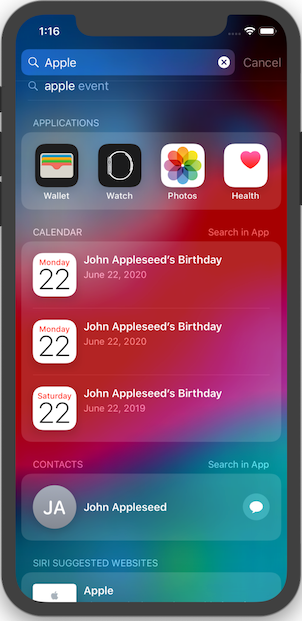
Leverage Your App Presence
Apple provides three main API’s to make your app more discoverable:
- Core Spotlight: Indexes your content privately on the user’s device.
- NSUserActivity: Make your content discoverable both on-device and to the public, by tracking the user’s activity and state, and syncing it back to Apple
- Web Markups: Index web pages related to the app (won’t be discussed in this tutorial).
All three API’s are quick and simple to use, and with a small effort, you can make your users retrieve search results from your app, sometimes even when they don’t have your app installed.
Index Your Data Using Core Spotlight
The Core Spotlight framework aims to index your data, and by “data” I mean anything you want — whether it’s user documents, relevant contacts, addresses, or even images.
There are three steps to adding an item to the Spotlight index:
- Define the item attributes — title, description, phone number, image, etc.
- Create an item for the index, based on the attributes we just set.
- Add the item to Spotlight index.
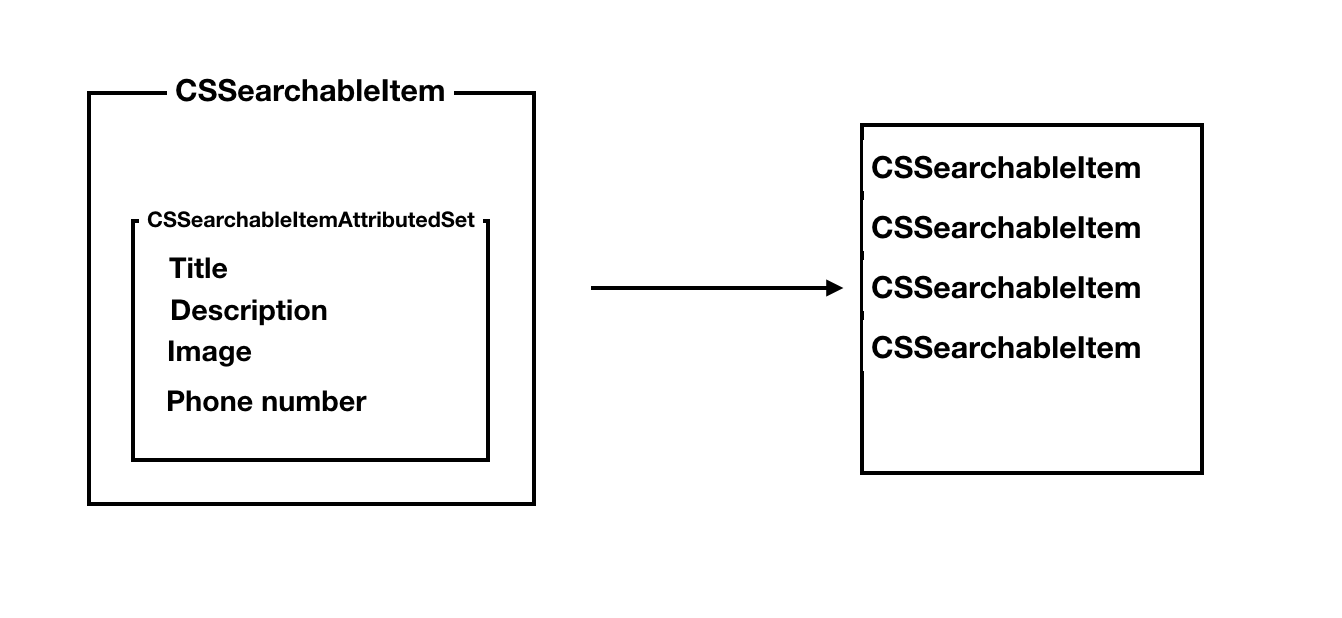 How Indexing Content Works
Let’s go over the steps:
Define the Item Attributes — CSSearchableItemAttributeSet
This is the first and most important step to index your content: define its attributes.
We create a CSSearchableItemAttributeSet instance and then start filling its properties.
When we initialize the instance, we need to pass its content type. Content type needs to be some sort of UTI from the type of string.
After instantiating the attributes set, you can start filling its properties, such as subject, title, description, creator kind, and many, many more.
import CoreSpotlight

class ContactGenerator {

  func index() {
        let attributed = CSSearchableItemAttributeSet(itemContentType: "Text")
        attributed.title = "Avi Tsadok"
        attributed.phoneNumbers = ["0544-xxxxxxx"]
        attributed.emailAddresses = ["avixxx@gmail.com"]
        attributed.contentDescription = "iOS Expert"
  }
}
There are several extensions to this class, such as:
CSSearchableItemAttributeSet_PlacesCSSearchableItemAttributeSet_EventsCSSearchableItemAttributeSet_Documents- and more.
They hold different sets of attributes for the object.
Try to fill as many attributes as you can — rich attributes sets will be translated better to search results and better user experience. Also, the search algorithm Apple uses prioritize richer results.
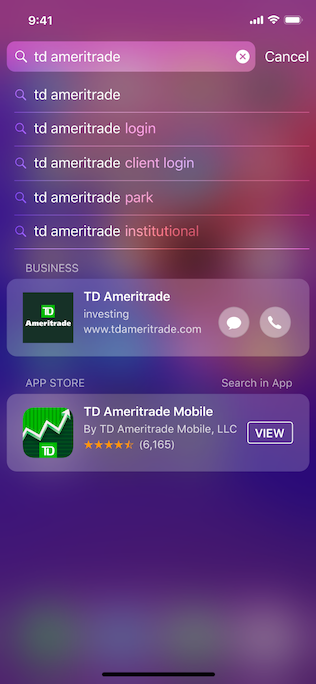
Some of the attributes are related to phone numbers, addresses, and locations.
This means that, whenever the search results contain items with those attributes, a call/navigate action button will appear next to the search item result and will let your user get a quick response to the search result.
Create the Search Item
This is a one-line step. Creating a search item (CSSearchableItem) is very easy, and you need to pass only three parameters: the item identifier, the domain identifier, and the attributed set we created in the previous set.
import CoreSpotlight

class ContactsIndexer {

    func indexItems() {
        let attributed = CSSearchableItemAttributeSet(itemContentType: "Text")
        attributed.title = "Avi Tsadok"
        attributed.phoneNumbers = ["0544-xxxx"]
        attributed.emailAddresses = ["avixxxxxx@gmail.com"]
        attributed.contentDescription = "iOS Expert"

        // create an item from attributed set
        let contactItem = CSSearchableItem(uniqueIdentifier: "123456", domainIdentifier: "Contacts", attributeSet: attributed)
        }
}- Item identifier has two roles — one is to give the item a unique ID, so you can delete or modify it in the future, and the second one is when the user taps the item and opens your app, you can load the relevant screen based on the identifier passed.
- Domain identifier is an optional parameter and it is used to group search results for the user. It can also help you delete items from a specific domain very easily.
Another attribute a searchable item has is an expiration date. By default, the expiration date of an item is one month, but you can override this property anytime.
Index Searchable Items With CSSearchableIndex
To index an item, we add it to the CSSearchableIndex.
CSSearchableIndex has a singleton called default. This one has a method called indexSearchableItems with one parameter which is the array of items to index.
You should understand by now that the best practice is to map your data to searchable items and then index them all together, instead of doing that one-by-one.
CSSearchableIndex.default().indexSearchableItems([contactSearchableItem]) { (error) in
            if !error {
              print("Completed successfully")
        }
  }
CSSearchableIndex has additional methods like deleting all items in the index, deleting items by identifiers, or deleting items by domain.
        // delete all items
        CSSearchableIndex.default().deleteAllSearchableItems { (error) in

        }

        // delete certain items by identifiers
        CSSearchableIndex.default().deleteSearchableItems(withIdentifiers: ["aviID"]) { (error) in

        }

        // delete all items from specific domains
        CSSearchableIndex.default().deleteSearchableItems(withDomainIdentifiers: ["contacts"]) { (error) in

        }
Index Your User Activity Using NSUserActivity
Another way to bring your users relevant search results is to use something called NSUserActivity.
NSUserActivity was created to track the user state, and then synchronize it to other Apple devices for Handoff and continuity. But, tracking the user activity can also help Spotlight bring better and more accurate search results.
By tracking the user activity along with the app, you index items to the search engine. Remember — CSSearchableIndex reflects what your app has, and NSUserActivity reflects what your user does with your content.
Just like CSSearchableItem, creating an activity is simple and straightforward:
    func addUserActivity() {
        let userActivity = NSUserActivity(activityType: "com.searchtutorial.www")
        userActivity.title = "Search Tutorial"
        userActivity.isEligibleForSearch = true
        userActivity.isEligibleForHandoff = true
        userActivity.isEligibleForPrediction = true
        userActivity.isEligibleForPublicIndexing = true
        userActivity.keywords = ["search", "tutorial", "spotlight"]
        userActivity.userInfo = ["id" : "tutorial123"]
        userActivity.becomeCurrent()
    }
Another way to make your search results even richer is to attach the CSSearchableItemAttributeSet object to the user activity. Yes, the same class we used to index CSSearchableItem.
    func addUserActivity() {
        let userActivity = NSUserActivity(activityType: "com.searchtutorial.www")
        userActivity.title = "Search Tutorial"
        userActivity.isEligibleForSearch = true
        userActivity.isEligibleForHandoff = true
        userActivity.isEligibleForPrediction = true
        userActivity.isEligibleForPublicIndexing = true
        userActivity.keywords = ["search", "tutorial", "spotlight"]
        userActivity.userInfo = ["id" : "tutorial123"]

        let attributed = CSSearchableItemAttributeSet(itemContentType: "Article")
        attributed.title = "Search Tutorial"
        attributed.emailAddresses = ["avixxx@gmail.com"]
        attributed.contentDescription = "How to search your items with Core Spotlight"

        userActivity.contentAttributeSet = attributed

        userActivity.becomeCurrent()
    }
Expose Popular Activities to the World
One thing to notice here. There is a property called isEligibleForPublicIndexing.
This means that this search result can appear for other users as well, even if they don’t have your app installed (!). So, never set this property to true, unless you are sure this is not private user content.
Index Your Content in the Background
You can index your content in the background to make your content up-to-date in search results.
To do that, you need to create a Spotlight Index Extension**.**
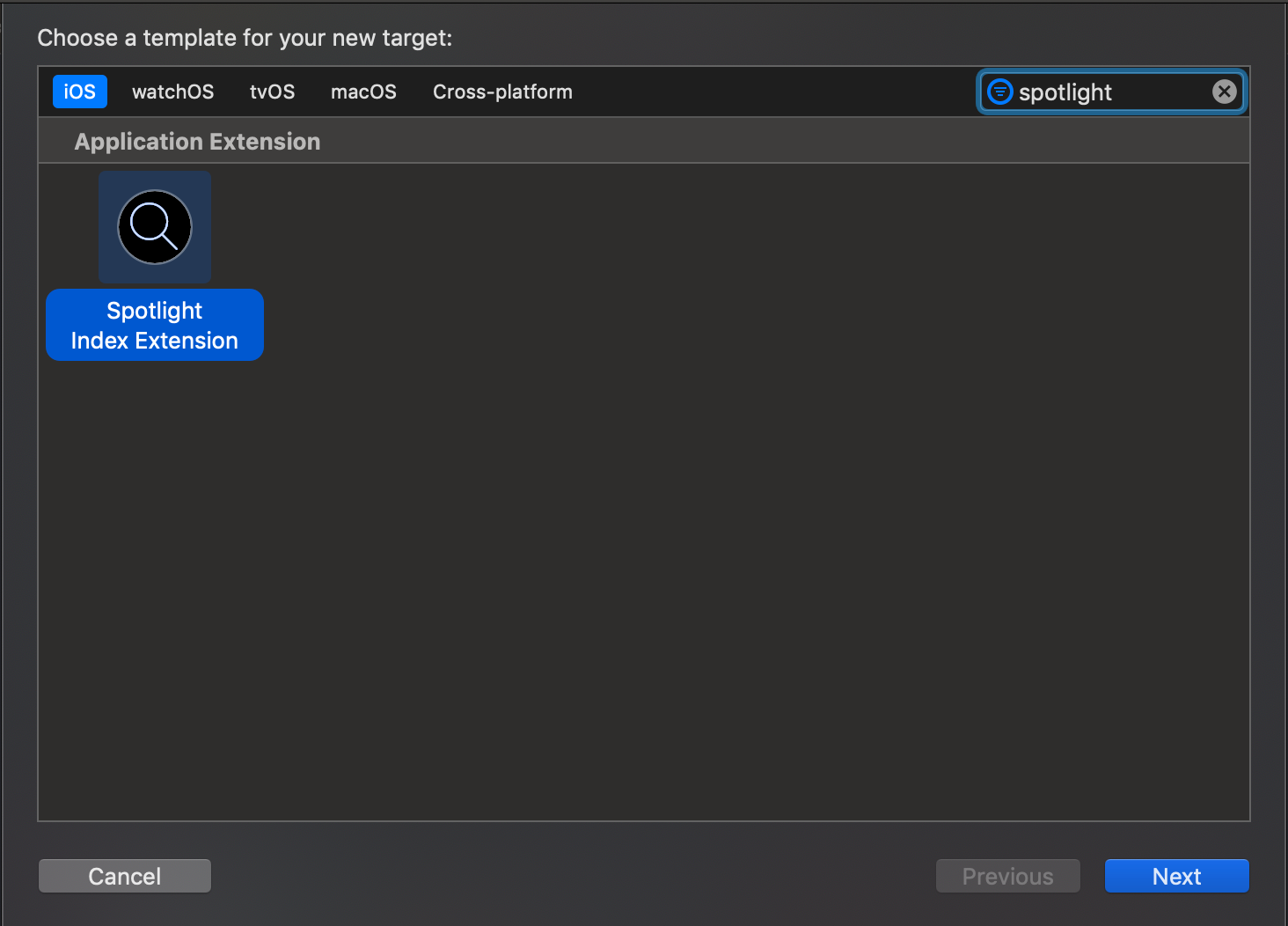
This extension has three roles:
- Reindex your data when the user restores your app from backup or data recovery.
- Reindex your data that is about to expire (if needed, of course).
- Index new items received with drag-and-drop (on iPad).
This may sound like a small issue but if you want your index to be fully maintained, this may be the ideal method to do that.
Search Best Practices
Here are some best practices regarding search in iOS:
- Try to use
CSSearchableItemAttributeSetwith images to make your search results noticeable. - Use keywords in
NSUserActivity, between three to five keywords for each activity. - Update your searchable item index by removing and updating the items to make your results relevant.
- It is best to create a service that can provide a
CSSearchableItemAttributeSetto the item. Not only is this good for testing but you can also reuse the code both forNSUserActivityand forCoreSpotlight. - Try to understand when to index your content. It can be on app loading, when data is changed, or after synchronizing with the server.
- Pay attention to the expiration date. To make your content alive in search results, make sure you set a far expiration date, re-index it.
- If you build a search extension, share indexing code with the main app.
Summary
It’s amazing how easy it to index your content for searching, compared to the benefits you can get from it.
Getting into Spotlight can increase your engagement with your app.
Originally published on Medium.
Comments